Playing With Python #1: Learning the Basics
This is the first article of a series that is designed to gently bring someone who has no programming experience up to a level where they can begin creating their own projects. What makes these articles different from others is that I don’t want to focus only on technical details about the language, but to show how to think like a programmer solving problems and creating projects.
This progression might feel a little slow to someone who is already familiar with programming, but hopefully I can do this in a way that can still be interesting and engaging to the reader. To avoid overloading beginners, this tutorial will start simple, progress through to more advanced topics, and revisit older subjects to add more context.
By the end of this article, you will learn everything you need to know to understand simple programs, like this number guessing game:
import random


def guessing_game():
    # This is the computer's randomly chosen number
    number = random.randint(1, 100)

    # The player hasn't made a guess yet
    guess = None

    # We will count how many times the player had tried to guess
    tries = 0

    # Keep playing until the number is guessed
    while guess != number:
        # Increase the tries count
        tries += 1

        # Get the player's guess for the number
        guess = int(input("Guess a number: "))

        # Provide feedback to the player about their guess
        if guess < number:
            print("Too low!")
        elif guess > number:
            print("Too high!")
        else:
            print(f"You got it in {tries} tries!")


# Run the guessing game function, so you can play it!
guessing_game()
Installing Python
The first step to using Python is getting it up and running on your computer. The process used to get Python and run it depends on the operating system you are using. If you are using Windows, the easiest way would be to go to Python Downloads and download the installer and double-click it from your Downloads folder. After that, you should have Python in your Start menu. If you are using Linux, Python is very likely already on your machine. If you use macOS, you may need to install the current version of Python if it is not already available.
Your First Lines of Code
We will begin by using IDLE, which is a simple interactive Python interpreter that comes with Python. At a future time, we will use alternatives like Visual Studio Code or PyCharm, but IDLE is the quickest and easiest way to just jump right in and start playing with Python.
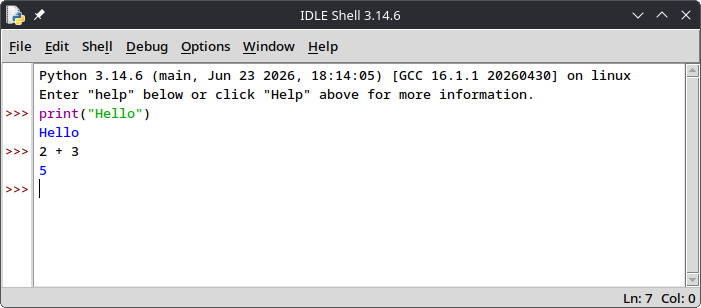
We will begin by using an interactive interpreter, which will give you immediate results to what you type in. Because of this, I will indicate what you should type after >>> and the output will follow after that. If you see a ..., that means that the code is continuing on the next line – don’t type those dots. I am also using ### to indicate immediate mode results, to avoid syntax highlighting making the text different colors.
You can test out interacting with it right now, by using it like a calculator. Go ahead and try a few math expressions and see the results displayed after hitting enter. You already know that + is addition and - is subtraction, but in Python programming *, is used for multiplication and / is used for division, and ** is used for raising to a power. The % is the “modulus” operator, which gives what the remainder would be after doing division – this can be useful for checking if a number is odd or even.
>>> 2 + 3
### 5

>>> (1 + 2 + 3) * 4 / 2
### 12.0

>>> 2**8
### 256

>>> 15 % 2
### 1
We will start actually programming with the use of one of the most basic functions – print. The print function will output information to the terminal. The below example shows printing strings (text), integers (numbers without a decimal place), floats (numbers with a decimal place), and booleans (True or False).
>>> print("Hello")
### Hello

>>> print(123)
### 123

>>> print(3.14)
### 3.14

>>> print(True)
### True
You might be wondering why we are using the print command if it also looks to be displaying the results. When you are in an interactive interpreter, it will display the value of a variable or result of an expression. In an actual program or script, though, if you want text written to the terminal, you will use print – output is not displayed just by writing an expression on its own.
Short Term Memory (Variables)
Computer programming is mostly a matter of manipulating information – storing it, changing it, sending or receiving it, and making decisions based on it. The most basic way of a computer keeping track of information is with a variable. Think of a variable as a name to refer to information stored in memory.
>>> name = "Nate"
>>> name
### 'Nate'

>>> age = 42
>>> age
### 42

>>> nothing = None
As you can see, the variables name and age are being used to store information about a person. Variables can also be used for storing all sorts of other information, like the position of a space ship on the screen, how much health an enemy has, user input, and more. The value of None can be used to signify that the value of a variable is not set or that it is empty.
Using Variables
Variables can be manipulated and used in a number of different ways.
We will define a variable named total and initialize it with the value of 0. Unlike mathematics, variables in computer programming get assigned values instead of being used to describe an equation. Think of the = sign as assignment, or moving a value into a variable. total = total + 1 would be nonsensical and illogical in mathematics, but this sort of thing is done all the time in computer programming. Increasing a variable by adding a value to itself is so common that a shorthand operator of += exists.
>>> total = 0
>>> total
### 0

>>> total = total + 1
>>> total
### 1

>>> total = total + 3
>>> total
### 4

>>> total += 2
>>> total
### 6
The use of logical operations can be used as a way to ask questions about our variables and get an answer. We can ask if the variable is less than (<), is greater than (>), is equal to (==), or is not equal to (!=) some value. You can think of True as being a “yes” answer to the question and False as being a “no”.
>>> total < 5
### False

>>> total > 5
### True

>>> total == 5
### False

>>> total != 5
### True
Text (Strings)
We can work with strings to manipulate text. We can “concatenate” strings to make a new string by joining pieces of text together. We can also use a special kind of string called an f-string to insert the values of variables into a newly constructed string.
>>> first_name = "John"
>>> last_name = "Doe"
>>> full_name = first_name + " " + last_name
>>> full_name
### 'John Doe'

>>> another_full_name = f"{first_name} {last_name}"
>>> full_name == another_full_name
### True
There are a number of different ways a string can be represented. Here are some examples that are all equivalent. Note, this is using the * operator to make the string repeat.
>>> print("-" * 10)
### ----------

>>> print('-' * 10)
### ----------

>>> print("""-""" * 10)
### ----------

>>> print('''-''' * 10)
### ----------
Why are there so many different ways? The single quote and double quote versions provide some convenience. Consider "It's a rainy day" – if it was surrounded by single quotes, the computer would need help knowing where the string actually ends, like 'It\'s a rainy day'. Likewise, 'She said, "Hello."' would need to be written as "She said, \"Hello.\"" if double quotes were used.
The backslash \ in the strings is called an “escape character”, which means that the next character should be treated in a special way. The """ and ''' make it easier to use single and double quotes in a string, without needing to escape them. They also allow you to more easily make “multi-line” strings in your program – something that would otherwise require a newline \n escaped character.
>>> print("He said, \"It's raining.\"\nI'll bring an umbrella.")
### He said, "It's raining."
### I'll bring an umbrella.

>>> print('He said, "It\'s raining."\nI\'ll bring an umbrella.')
### He said, "It's raining."
### I'll bring an umbrella.

>>> print("""He said, "It's raining".
... I'll bring an umbrella.""")
### He said, "It's raining".
### I'll bring an umbrella.

>>> print('''He said, "It's raining".
... I'll bring an umbrella.''')
### He said, "It's raining".
### I'll bring an umbrella.
Making Decisions (If, Elif, Else)
There are times when you need the program to do different things based on different conditions. It is a good time to now introduce the importance of “significant whitespace” in Python. Code that is grouped together has the same amount of leading “whitespace”. They can be tabs or spaces – it needs to be consistent, but I recommend using four spaces for indentation (many editors can make the tab key add spaces instead of a tab character.) You cannot mix tabs and spaces, so stay consistent with what you use.
>>> lives = 0
>>> if lives == 0:
...    print("Sorry, you're dead.")

### Sorry, you're dead.

>>> lives = 1
>>> if lives == 0:
...    print("Sorry, you're dead.")
As you can see in the example above, the code inside the if statement is only run when the expression evaluates to True. In a video game, you will use an if statement to check if the player has run out of lives (like in this example), has run out of health, has enough money to buy an item, if the player had bumped into something, or checking for many other situations that might have occurred.
You might want to have two different things happen, depending on if the result of the expression is either True or False. For that, the else keyword can be used.
>>> health = 100
>>> if health == 0:
...     print("Lose a life.")
... else:
...     print("Keep on going.")

### Keep on going.
But, what if there are more things you might possibly want to have done? You might have noticed, at the beginning of the article, the example number guessing game used if, elif, and else. The keyword elif stands for “else if”, and is used to chain these checks together – stopping at the first that evaluates as True. You can have more than one elif, if you needed to.
>>> grade = 75
>>> if grade > 90:
...     print("A")
... elif grade > 80:
...     print("B")
... elif grade > 70:
...     print("C")
... elif grade > 60:
...     print("D")
... else:
...     print("F")

### C
This shows how different ranges of values can be used for selecting a homework letter grade. As you can see, even though grade > 60, evaluation stopped at the first branch that evaluated to True. If all branches were False (a grade less than 60), it will fall back on what is in the else branch.
I am using the word “branch” because you can think of each option as being like the branches of a tree, and you might select a different branch based on some criteria. If statements can be nested inside of other if statements, so that would be like branches branching off into more branches.
Doing Things Again and Again (For, While)
Often, you would want to do something more than once and it would be tedious to type the same code over and over again to do it – or, often, you cannot know ahead of time how many times a block of code will need to run.
There are a few different ways of doing “loops”, but the easiest to explain might be the while loop. The while loop runs the code inside of it “while” the condition it checks for evaluates to True. As you can see in the example below, the counter starts at zero (which is less than five). Each time the code inside is run, the value of the counter variable will be increased until it is no longer less than five and the loop will stop looping.
>>> counter = 0
>>> while counter < 5:
...     print(counter)
...     counter += 1

### 0
### 1
### 2
### 3
### 4
Loops can also be done using the for keyword, like this:
>>> for counter in range(5):
...     print(counter)

### 0
### 1
### 2
### 3
### 4
Note that the variable did not need to be initialized ahead of time – it will start at zero if range only has one argument provided to it. The range function can take one (range from zero to the value specified), two (range from a starting value to an ending value), or three arguments (range from a start to an end value with a step size to skip values).
>>> for counter in range(100, 150, 10):
...     print(counter)

### 100
### 110
### 120
### 130
### 140
The for keyword isn’t just for “counting”, though. It is actually for something called “iterating” – it just so happens that what is iterated over when using range are a range of numbers. You can iterate over characters of a string, items in a list, or other iterable things.
>>> for character in "Hello World!":
...     print(f"[ {character} ]")

### [ H ]
### [ e ]
### [ l ]
### [ l ]
### [ o ]
### [   ]
### [ W ]
### [ o ]
### [ r ]
### [ l ]
### [ d ]
### [ ! ]

>>> for fruit in ["apple", "banana", "pear", "orange"]:
...     print(fruit)

### apple
### banana
### pear
### orange
Doing Nothing (Comments)
Not all lines in a program need to do something – sometimes they can exist just to help the programmer understand what is going on. Blank lines between code can help someone more easily identify related code, instead of having everything smooshed together.
Code can also have “comments” – text that gets skipped over by Python that can provide information and explanations to the person reading the code. Comments start with a # and go until the end of the line.
>>> # This comment does nothing
>>> print("Hi")  # Comments can be on a line of code
### Hi
You might see in some code a special kind of string called a “docstring”. It looks similar to a comment and serves a similar purpose of being used to document your code. If you see a string at the start of a function, don’t get confused – it is there to help document the function it is in.
>>> def commented_function():
...     '''This function does nothing'''
...     return "Nothing"

>>> print(commented_function.__doc__)
### This function does nothing
Remember What To Do (Functions)
Speaking of functions, now will be a good time to learn about them. A function is a block of code that you can define to make it easy to reuse. Think of it like writing step by step instructions for the computer to follow – because that’s what it is.
A function can return a value – for example, if it is a function that performs some mathematical operations or transforms data in some way. Functions do not need to return a value, though – they could just perform some sequence of steps. Functions are defined by using the def keyword (“def” is short for “define”).
>>> def fahrenheit_to_celsius(fahrenheit):
...     return (fahrenheit - 32) * 5 / 9

>>> fahrenheit_to_celsius(0)
### -17.77777777777778

>>> fahrenheit_to_celsius(32)
### 0.0

>>> fahrenheit_to_celsius(100)
### 37.77777777777778

>>> fahrenheit_to_celsius(212)
### 100.0
A lot can be done with functions – they are very useful. “Arguments” can be passed into them – these are variables that the function uses to do what it needs to do. Here is a function that will print a “box” with a specified inner width and height:
>>> def box(width, height):
...     print("+" + "-" * width + "+")
...     for i in range(height):
...         print("|" + " " * width + "|")
...     print("+" + "-" * width + "+")

>>> box(5, 3)
### +-----+
### |     |
### |     |
### |     |
### +-----+

>>> box(10,5)
### +----------+
### |          |
### |          |
### |          |
### |          |
### |          |
### +----------+
Getting Outside Help (Import)
The last thing that will need to be explained to fully understand the guessing game function is the import keyword. import lets you use pre-existing code in your own programs. In the case of the guessing game, the random module is imported, so you can easily make use of randomly generated numbers. It wouldn’t be much of a game if the computer always picked the same number every time, would it?
A later article will go more deeply into modules, so all you really need to know is that they are like a “toolbox” of functionality and values that you can grab and use to more easily do common tasks.
Guessing Game Code Walkthrough
Here is the code for the guessing game again – this time, I will walk you through what each part of it is doing and explain how it works:
import random


def guessing_game():
    # This is the computer's randomly chosen number
    number = random.randint(1, 100)

    # The player hasn't made a guess yet
    guess = None

    # We will count how many times the player had tried to guess
    tries = 0

    # Keep playing until the number is guessed
    while guess != number:
        # Increase the tries count
        tries += 1

        # Get the player's guess for the number
        guess = int(input("Guess a number: "))

        # Provide feedback to the player about their guess
        if guess < number:
            print("Too low!")
        elif guess > number:
            print("Too high!")
        else:
            print(f"You got it in {tries} tries!")


# Run the guessing game function, so you can play it!
guessing_game()
Here is a flowchart that will illustrate the flow of execution through the program.
  flowchart TD
    xcall([guessing_game function]) --> xrandom[Generate random number]
    xrandom --> xinit1[Set guess to None]
    xinit1 --> xinit2[Set tries to 0]

    xinit2 --> xloop{Is guess<br>not equal to<br>number?}

    xloop -- No --> xend([End])

    xloop -- Yes --> xinc[Increment tries]
    xinc --> xinput[Input guess]

    xinput --> xlow{Is guess<br>less than<br>number?}

    xlow -- No --> xhigh{Is guess<br>greater than<br>number?}

    xlow -- Yes --> xlowmsg[Print 'Too low']
    xlowmsg --> xloop

    xhigh -- No --> xwin[Print success message<br>with tries count]
    xwin --> xloop

    xhigh -- Yes --> xhighmsg[Print 'Too high']
    xhighmsg --> xloop

    style xcall fill:#d1fae5,stroke:#059669
    style xend fill:#fee2e2,stroke:#dc2626
    style xloop fill:#fef3c7,stroke:#d97706
    style xlow fill:#fef3c7,stroke:#d97706
    style xhigh fill:#fef3c7,stroke:#d97706
One thing to note is that this is not written to be run in the immediate mode interpreter – what some people call a REPL (Read-Eval-Print-Loop.) In IDLE, click “File” on the menu bar, then “New File”. Type in the example code in the window, then click “File” and “Save As…” to save it as a file named “guessing_game.py”. Now you can click “Run” and “Run Module” to run it. Alternatively, you can run it from a terminal using python guessing_game.py.
import random
The first thing the script does is import the random module. Like I had said before, it is so you can easily have the computer pick a random number.
def guessing_game():
Then the def keyword is used to define a function called “guessing_game”. It does not need to take any arguments – this is where the entire game will be defined.
    # This is the computer's randomly chosen number
    number = random.randint(1, 100)
The computer uses the randint function from the random module to get an integer number (a whole number, without decimal places) that is somewhere from 1 to 100 (including both 1 and 100 in that range).
    # The player hasn't made a guess yet
    guess = None
Since the game is just starting, the player did not have a chance to make a guess yet. We do want the guess variable to be defined, though, so we don’t get an error. I’ll use the value None, which basically is being used as a placeholder to mean that no guess had been made yet.
    # We will count how many times the player had tried to guess
    tries = 0
The tries variable is defined and initialized to zero, and it will be used to count how many tries the player had taken before they eventually guessed the correct number. This will let the user know how good (or bad) they are at guessing.
    # Keep playing until the number is guessed
    while guess != number:
A while loop is used to have the game continue looping as long as the guess from the player does not equal the number the computer had randomly picked. The player continues playing the game until they get it right.
        # Increase the tries count
        tries += 1
The tries counter variable is incremented (increased in value by one) to count the number of tries. On the first iteration of this loop, the value will go from 0 to 1.
        # Get the player's guess for the number
        guess = int(input("Guess a number: "))
Then we will get the player’s guess for the number. Python has a built-in function called input that is used to get input from a user. The string argument it provides is a “prompt” instructing the user on what to type.
Here, one function call is nested inside another, so the output of input is being used as input for int (that sounded confusing). The function input returns a string value. The int type will turn a string into an integer (number). I should take a moment to acknowledge that no error handling is being done here – if the user types something that is not a number, the program will terminate with an error. We will get into error handling at a future time.
        # Provide feedback to the player about their guess
        if guess < number:
            print("Too low!")
        elif guess > number:
            print("Too high!")
        else:
            print(f"You got it in {tries} tries!")
Now we need to provide feedback to the user about their guess. Three branches for an if, elif, and else are used to handle the three possible scenarios for the user’s guess. One possibility might be that the number is “too low” – that the user guessed a number with a lower value than the computer had picked. Another possibility is that the number is “too high” – the guess has a larger value than the computer’s number. The third possibility is that the guess is neither too low nor too high, which means that the guess is correct.
When the guess is correct, an f-string is used to print the winning message with the number of tries that the player had taken.
The program will then loop back up to the while. If the number was not guessed correctly, it will go through those steps again to get a new guess from the player and check if they had won. If the guess is correct, though, the program will jump to after the end of the while block and, since there is nothing after, the function will end.
# Run the guessing game function, so you can play it!
guessing_game()
We had defined the function for guessing_game, but a function does not run unless it is called. The script will then call the guessing_game function to run it when the script is run.
Where We Will Go in the Next Article
In the next article of the series, we will look at:
- Tricks and tips to make learning easier.
- Tuples.
- Lists (collections of values).
- Dictionaries (key/value pairs for quickly looking up information).
- Sets.
- More example programs.